A mistyped digit in the account number or a skipped field at the cashier screen leaves the player staring at a rejection notice right after confirming the payment. That detail is the most common cause of a payment that stalls, reverses or never reaches the balance.
Withdrawals that stay pending after the request is confirmed
The player sees the withdrawal marked as pending in the account history, with the balance already reduced but nothing arriving at the bank.
- Identity documents uploaded at registration are incomplete or unreadable.
- The payout method differs from the method used to deposit.
- A bonus still attached to the balance has play conditions that are not finished.
- The bank details on file contain a small error, such as a wrong digit or a missing branch field.
- A second request was submitted while the first was still open, which puts the queue on hold.
- Open the account history and confirm the request status is pending rather than cancelled.
- Compare the payout method with the deposit method and switch the payout to the matching one.
- Check whether an active bonus is still attached to the balance.
- Finish any remaining play conditions before submitting the request again.
- Upload a fresh photo of each identity document, with all four corners visible.
- Type the bank details again instead of pasting them from a saved note.
- Remove any space or dash inside the account number field.
- Cancel a duplicate request so only one withdrawal sits in the queue.
- Write down the reference number shown on the pending request.
- Keep the balance untouched until the request clears or is returned.
Contact support once the documents are approved, the bonus is cleared and the request still shows as pending after several separate visits to the account.
Payments declined because of account or method limits
The player gets a decline message at the cashier, and the balance stays the same while the bank shows no movement.
- The amount sits below or above what the chosen method allows for a single payment.
- The account has reached a cap on how much can move through the cashier over a set period.
- The card or bank account is not in the player’s own name.
- The deposit method and payout method do not match the rules for the account.
- A payment is attempted while an earlier one is still being reviewed.
- Re-enter an amount in a normal range for the method rather than at its very edge.
- Switch to a different payment option that suits the amount being moved.
- Make sure the name on the payment account matches the name on the account exactly.
- Use the same method for deposits and withdrawals wherever the account allows it.
- Split a very large request into a few smaller ones submitted on different days.
- Wait for the earlier payment to finish before starting a new one.
- Correct any saved payment details that were copied from an old statement.
- Retry once with the corrected details and note the exact error wording.
- Capture a screenshot of the decline message for the support team.
Contact support when the decline repeats with a correctly entered amount, a matching method and no other payment open on the account.
A deposit that left the bank but is missing from the balance
The bank statement shows the money gone, while the account balance and history show nothing at all.
- The payment is still moving between the bank and the cashier.
- The deposit was sent with a reference or account number that does not match.
- A bonus code was entered with a typo, so the deposit was held instead of credited.
- The browser session ended before the cashier confirmation screen loaded.
- The payment went to a saved card or wallet that is no longer linked to the account.
- Stay on the cashier page until the confirmation message appears, then close it.
- Note the transaction reference shown by the bank and the one shown by the cashier.
- Compare the two references and confirm they describe the same payment.
- Check the account history again after giving the transfer time to settle.
- Avoid repeating the deposit while the first one is unconfirmed.
- Retype the bonus code carefully if one was used, matching upper and lower case.
- Confirm the payment method in the cashier still matches the account on file.
- Keep the bank receipt and the cashier screenshot together in one place.
- Sign in from a single phone browser tab and repeat the payment only if support advises it.
- Send both references to https://www.zodiaccasino-ca.ca/ support so the payment can be traced and credited.
Contact support as soon as the bank shows the money gone and the balance has not changed after a reasonable wait.
Sign-in failures and a locked account after wrong attempts
The player types the password and sees an error each time, until the account shows as locked and refuses the next try.
- The password was typed with the wrong keyboard layout or with Caps Lock on.
- The email address on the account differs by one character from the one being entered.
- Several wrong attempts in a row triggered the automatic lock.
- A saved password in the browser is out of date after a change.
- The account is already open in another browser tab or on another phone.
- Stop entering passwords once the lock message appears, because more tries extend it.
- Retype the email address slowly and check each character.
- Turn off Caps Lock and switch the keyboard to the language used at sign-up.
- Clear the saved password for the site in the browser settings.
- Close every other tab and browser window signed in to the account.
- Open one fresh tab and load the sign-in page again.
- Use the password reset option if the login page offers it next to the password field.
- Set a new password that is not reused from another site.
- Sign in once on the phone browser, keeping the tab open until the balance loads.
- Write the password down in a safe place rather than saving it in the browser.
Contact support when the reset message never arrives or the account stays locked after a single careful attempt with a new password.
Quick Reference
The table below maps each problem to the cause players most often find first and the first thing worth checking.
| Problem | Usual cause | First check |
|---|---|---|
| Withdrawal stays pending | Identity documents incomplete | Document status in the account |
| Payment declined | Amount outside the method range | The amount entered against the method rules |
| Deposit missing from balance | Reference mismatch or unfinished cashier page | Bank reference next to the cashier reference |
| Account locked | Repeated wrong password entries | Keyboard layout and Caps Lock |
| Bonus not credited | Typo in the bonus code | The code as typed at the cashier |
Withdrawals and missing deposits usually trace back to a document or reference detail, so keeping those details correct from the start saves a repeat visit. Declines are often about the amount sitting at the very edge of what a method accepts. Lockouts rarely come from a forgotten password alone; the keyboard layout is the quiet culprit behind most repeated failures. The Zodiac casino review pages and the support team both work best when the player brings a reference number and a screenshot. Keeping one payment open at a time makes every later check simpler. The Casino Zodiac account page shows the state of each request, so read it before retrying anything.
Write each payment reference and the bonus code into a note before confirming, then compare that note with the account history after every session.

Sale Items
-
 LB L3 13P-15PM True tone repair expansion board
Original price was: ₨ 4,200.00.₨ 4,100.00Current price is: ₨ 4,100.00.
-
 Glue Removal Rework Blade MECHANIC Speed Blade 5 IC CPU Hard Disk Layering Rubber Tapping Shovel Prying Adhensive Cutted Knife
Original price was: ₨ 1,400.00.₨ 1,100.00Current price is: ₨ 1,100.00.
-
 Mijing&M-Triangel LWS-301 intelligent Laser Welding Station for Motherboard BGA free hot gun IC Dissembly CPU Degumming Repair
Original price was: ₨ 55,000.00.₨ 52,000.00Current price is: ₨ 52,000.00.
-
 2UUL BH17 CPU REBALL BASE Magnetic Dual-Sided Reballing Platform Set
Original price was: ₨ 7,300.00.₨ 7,000.00Current price is: ₨ 7,000.00.
-
 RELIFE RL-728A 2D sturdy mobile phone repair screwdriver set
Original price was: ₨ 2,100.00.₨ 2,000.00Current price is: ₨ 2,000.00.
-
 YCS drill machine Adjustable Electric Grinding Polishing Pen
Original price was: ₨ 2,050.00.₨ 2,000.00Current price is: ₨ 2,000.00.
-
 JTX GS-01 Green UV Solder Mask Stencil Kit for Qualcomm IC Repair - 20Pcs
₨ 1,200.00
-
 RELIFE E1 Carbon fiber electric screwdriver set
Original price was: ₨ 2,400.00.₨ 2,300.00Current price is: ₨ 2,300.00.
-
 WL PRE-Heater HT007 Intelligent Mainboard Layered Soldering Station for iPhone X-17 pro Max
Original price was: ₨ 65,000.00.₨ 63,000.00Current price is: ₨ 63,000.00.
-
 Wood storage box for mobile repair to keep your tools (Amaoe MMT1)
₨ 1,800.00
Products
-
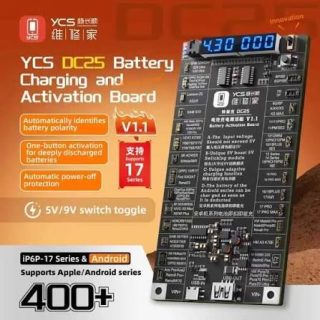 YCS DC25 Battery Booster IP& Andriod
₨ 2,300.00
-
 YCS D03 Bootcable
Original price was: ₨ 2,500.00.₨ 2,200.00Current price is: ₨ 2,200.00.
-
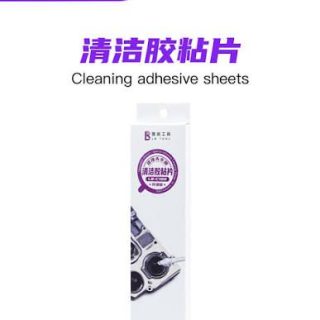 LB Cleaning adhesive sheets LB-C100
₨ 600.00
-
 LB Ultrasonic Cleaner Enhanced Version LB-U8 Pro
₨ 5,500.00